Erase date stamps, text overlays, logos, blemishes and small distractions from your own photos. Paint, press Remove, download. Nothing leaves your device.
Free · no sign-upNo uploadUndo & compare
Quick answer
To remove a watermark or date stamp from your own photo for free, open it in the browser tool below, paint over the mark a little past its edges, and press Remove. The area is rebuilt from the surrounding pixels on your device. It works best on small text, logos and date stamps over simple backgrounds; for large objects on complex backgrounds, use an AI editor with the prompts on this page.
Conversational photo edits, including removing people and objects.
Free tier available
Free tool
Remove a watermark or object from your photo
Paint over the watermark, date stamp, text or small object, then press Remove. Runs in your browser; your photo is never uploaded.
Paint over everything you want gone, a little past its edges. Several small passes beat one big one.
Choose a photo, or try the sample.
Only edit photos you own or have permission to edit. Removing a watermark from someone else's image to reuse it can break copyright law and platform rules.
Example
Before and after
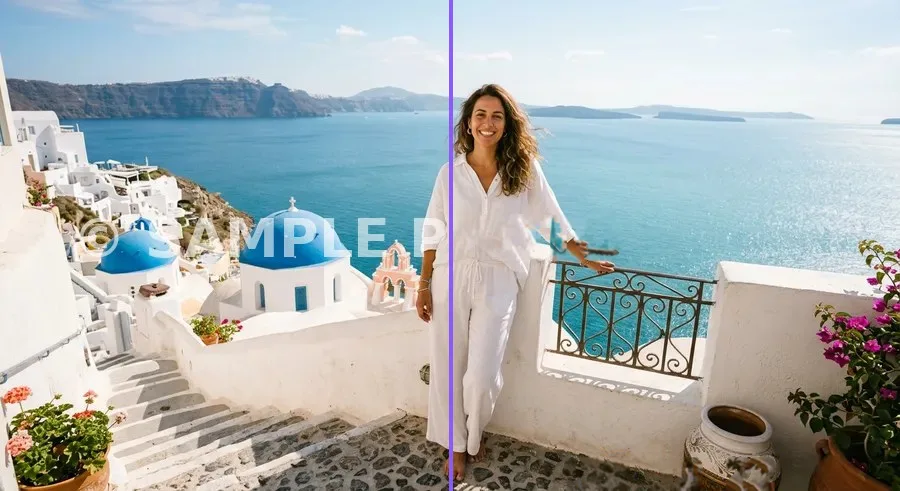
A real result from the tool above: the sample photo's watermark and date stamp, painted over and removed in one pass.
Before: text watermark and date stampAfter: removed in the browser in one pass
Overview
What this watermark remover is good at
The tool uses inpainting: it looks at the pixels around the area you paint and grows them inward to fill the gap. That is ideal for the things that usually spoil personal photos, such as an orange camera date stamp, a phone-app watermark on your own picture, a caption you added and regret, a dust spot, a power line or a small logo on a T-shirt.
Inpainting can't invent detail that isn't there, so very large objects over busy backgrounds (a person in a crowd, a big logo across a face) may leave a soft patch. For those, the prompts below tell an AI editor such as ChatGPT, Gemini or Photoshop Generative Fill exactly what to remove and how to rebuild the background.
Your photos only. Use this to clean up pictures you took or have the rights to. Stock-photo and creator watermarks protect someone's work; to use those images, license them.
How to
How to remove a watermark from a photo
Load your photo
Choose a JPG, PNG or WebP in the tool above. It opens on your device; nothing is uploaded.
Pick a brush size
Choose a brush just a little wider than the lines of the watermark or text.
Paint over it
Cover the whole mark plus a few pixels around it. Thin, separate strokes give cleaner results than one big blob.
Press Remove
The painted area is rebuilt from its surroundings. Not perfect? Undo, or paint the leftovers and remove again.
Compare and download
Hold Compare to check against the original, then download a full-quality JPG or PNG.
Guide
A practical guide to clean watermark and object removal
Small passes beat one big stroke
Inpainting works from the edges inward, so a thin line of text fills almost perfectly while a wide blob has to guess more. Paint one word or one part of a logo, press Remove, then do the next. Undo anything that looks off.
Choose the right fill
Smart fill is the default: it copies real texture patch by patch from nearby untouched areas, continuing the strongest edges first, so grass, stone, water and fabric stay crisp. Quick fill (Telea) and Smooth fill (Navier-Stokes) blend colours inward instead; they are softer but can look cleaner on skies, walls and flat colour.
Paint slightly past the edges
Watermarks often have soft shadows or a glow. Cover a few pixels around the mark, otherwise a faint outline is left behind. On a phone, zoom out so your finger covers the mark comfortably.
When to switch to AI
If the object covers important detail (a face, a patterned shirt, a crowd), inpainting can't know what was behind it. An AI editor can invent plausible detail: upload the photo, say exactly what to remove, and ask it to keep everything else unchanged, as in the prompts above.
Respect other people's work
Watermarks on stock photos, artwork and other creators' images protect their income. Use this tool for your own pictures and for marks you put there yourself; buy or license other images instead of stripping them.
Prompts
10 AI prompts for bigger clean-ups
Upload your photo to ChatGPT, Gemini or another AI editor and paste a prompt. Replace the words in [brackets].
10 of 10 shown
#01
Remove a camera date stamp
Remove the orange date stamp in the [bottom-right] corner of this photo. Rebuild the area underneath so it matches the surrounding [grass / sky / floor] naturally. Keep everything else exactly the same, same resolution and colours.

Negative prompt: changed face, different person, new objects, smeared texture, blurry patch, visible seams, colour shift, cropped image, text, watermark, logo
This is my own photo. Remove the white caption text across the [middle] of the image and restore the background behind it so no outline or blur is visible. Do not change people, faces or colours.

Negative prompt: changed face, different person, new objects, smeared texture, blurry patch, visible seams, colour shift, cropped image, text, watermark, logo
Remove the [person in a red jacket] walking in the background on the [left]. Fill the space with the matching background ([street / beach / crowd]) so it looks like they were never there. Keep the main subject's face, pose and clothes unchanged.

Negative prompt: changed face, different person, new objects, smeared texture, blurry patch, visible seams, colour shift, cropped image, text, watermark, logo
Remove all power lines and cables crossing the sky in this landscape photo. Continue the sky gradient and clouds seamlessly. Keep buildings, trees and lighting exactly as they are.

Negative prompt: changed face, different person, new objects, smeared texture, blurry patch, visible seams, colour shift, cropped image, text, watermark, logo
Remove the printed logo on the [chest] of the [T-shirt] and make the fabric plain [white], with natural folds, shading and texture continuing across the area. Keep the person and everything else unchanged.

Negative prompt: changed face, different person, new objects, smeared texture, blurry patch, visible seams, colour shift, cropped image, text, watermark, logo
Restore this scanned old photo: remove dust spots, scratches, creases and stains, keep the original grain and faces exactly as they are. Do not colourise, do not add detail that isn't there.

Negative prompt: changed face, different person, new objects, smeared texture, blurry patch, visible seams, colour shift, cropped image, text, watermark, logo
Remove temporary blemishes and small spots on the face, but keep natural skin texture, pores, freckles and moles. Do not smooth, slim or reshape the face. Same lighting and colours.

Negative prompt: changed face, different person, new objects, smeared texture, blurry patch, visible seams, colour shift, cropped image, text, watermark, logo
Remove the [cables, tape and stray objects] around the product and leave a clean [white seamless / wooden table] background with a soft natural shadow under the product. Do not change the product's shape, colour or label.

Negative prompt: changed face, different person, new objects, smeared texture, blurry patch, visible seams, colour shift, cropped image, text, watermark, logo
Remove all the tourists in the background around [the landmark] and rebuild the empty plaza, steps and architecture realistically. Keep [me] in the foreground exactly as is, same light and time of day.

Negative prompt: changed face, different person, new objects, smeared texture, blurry patch, visible seams, colour shift, cropped image, text, watermark, logo
Remove the window reflection and glare covering [the painting / the screen / the glasses] in this photo, revealing the surface underneath with natural colour. Keep composition, framing and everything else unchanged.

Negative prompt: changed face, different person, new objects, smeared texture, blurry patch, visible seams, colour shift, cropped image, text, watermark, logo
Yes. No sign-up, no limits, and it doesn't add its own watermark.
Is my photo uploaded?
No. The photo is opened and edited inside your browser on your own device. Smart fill runs instantly; the optional quick-fill engine downloads once (about 4 MB) and also runs locally.
Is it legal to remove a watermark?
Removing marks from your own photos, such as date stamps or your own app watermark, is fine. Removing a photographer's or stock site's watermark to use their image without a licence can infringe copyright, and in some countries removing copyright management information is illegal on its own.
Why does the removed area look blurry?
The tool can only reuse what is already in the photo, so big areas over unique detail (faces, text, patterns) may not rebuild perfectly. Remove in smaller passes, undo and repaint, or use an AI editor with the prompts above.
Does it keep the original resolution?
Photos up to 4096 pixels on the longest side are edited at full size. Larger photos are scaled down to 4096 px to keep your browser responsive.